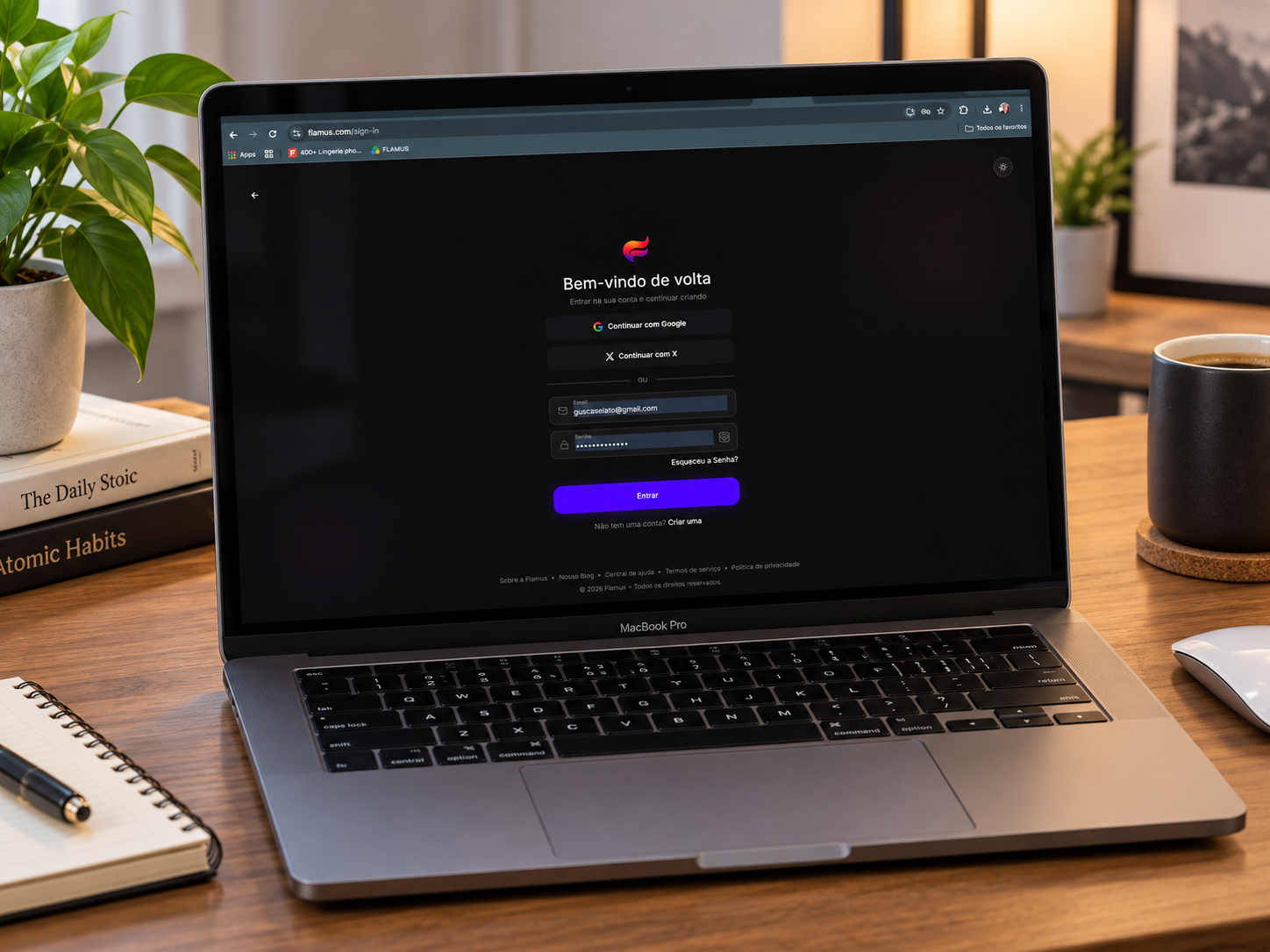
Account created, content ready. Now it’s time to publish.
Before you start, one important point: Flamus currently works through a web browser on your computer. The platform doesn’t have an app yet.
So open Flamus in your browser, log in to your Creator account and open your profile.
From there, publishing takes six steps.
To publish content on Flamus, click “+ Criar” (Create), choose Post or Spark, add your media and caption, decide who can access it, review the settings and publish right away or schedule it for another date.
How to publish content on Flamus in six steps
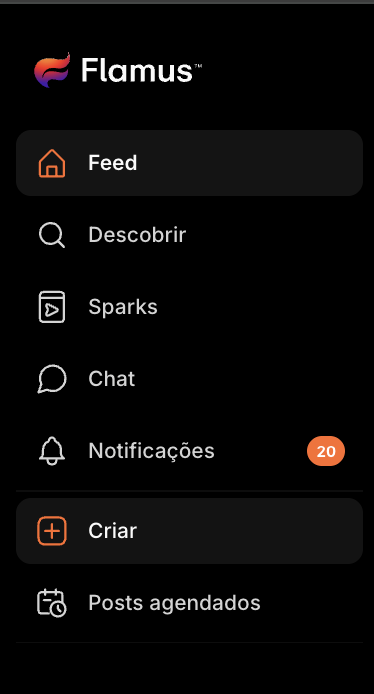
On the platform, click “+ Criar” to start a new post.
That’s where you start publishing content on Flamus and choose what you want to share.
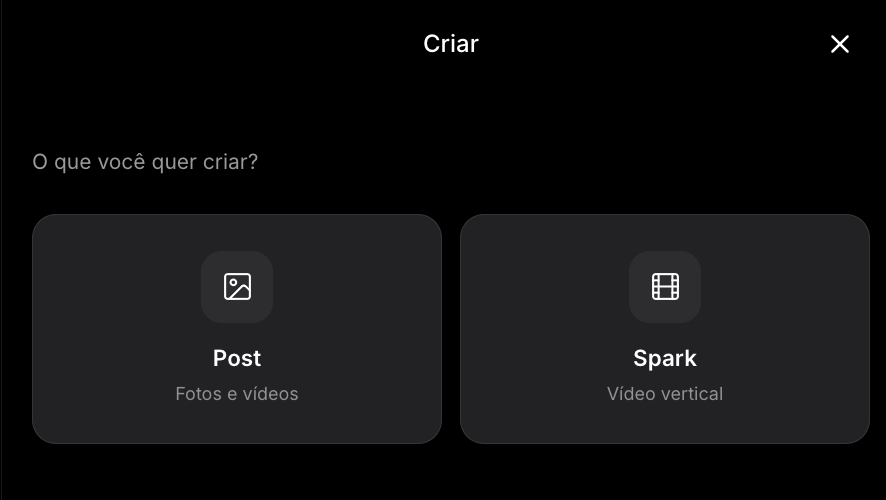
2. Choose Post or Spark
On Flamus, your content can take two main formats:
Post: supports photos and videos and appears on your profile and in the community feed.
Spark: a vertical video designed to be watched in sequence, one after another.
If you want to share a photo or video on Flamus and have it appear on your profile and in the feed, choose Post. For vertical content watched in sequence, choose Spark.
3. Write your caption
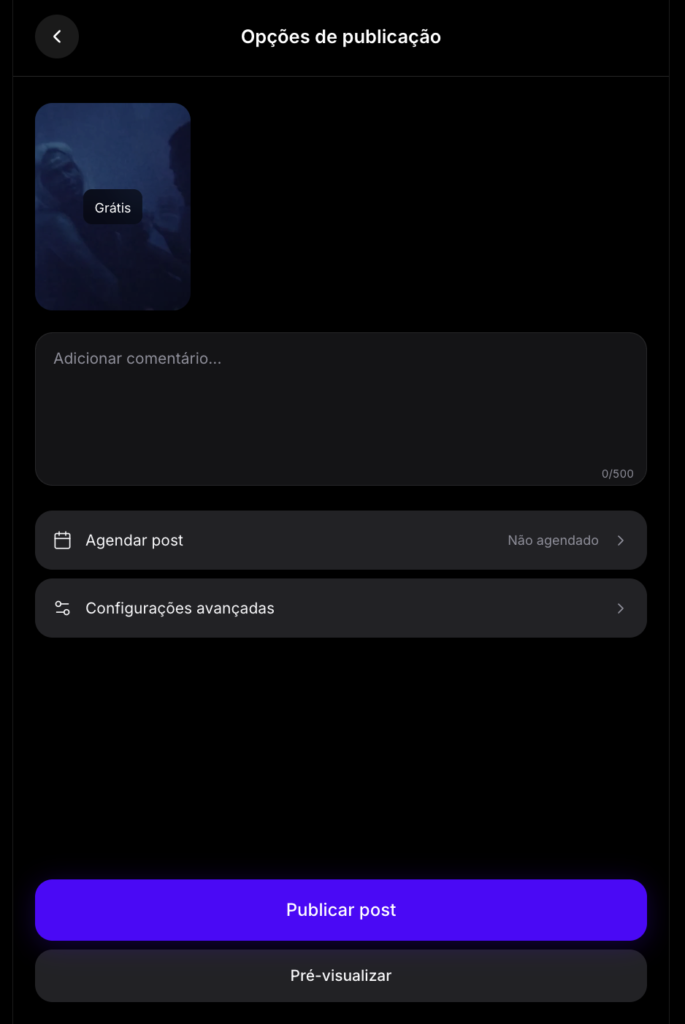
After choosing your media, write the text that will accompany the post.
Your caption can add context, share a behind-the-scenes story, explain a reference or start a conversation with the community.
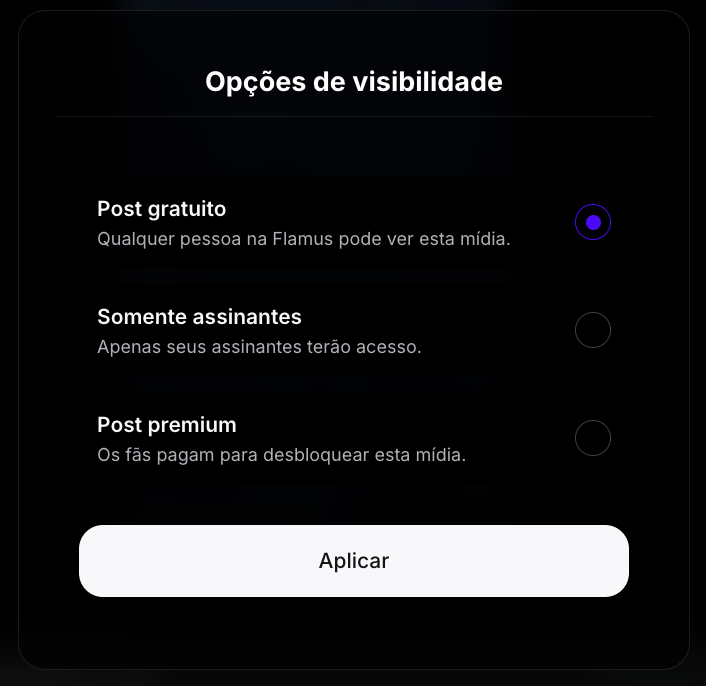
4. Choose who can see it
Now choose who can access the post.
Flamus offers three options:
Free: open to everyone, even without a subscription.
Subscribers: exclusive to people who subscribe to your community.
Pay-per-view: people pay to access that specific content, even if they aren’t subscribers.
You make this choice for each post. That way, different pieces of content can serve different purposes within your strategy.
5. Preview before publishing
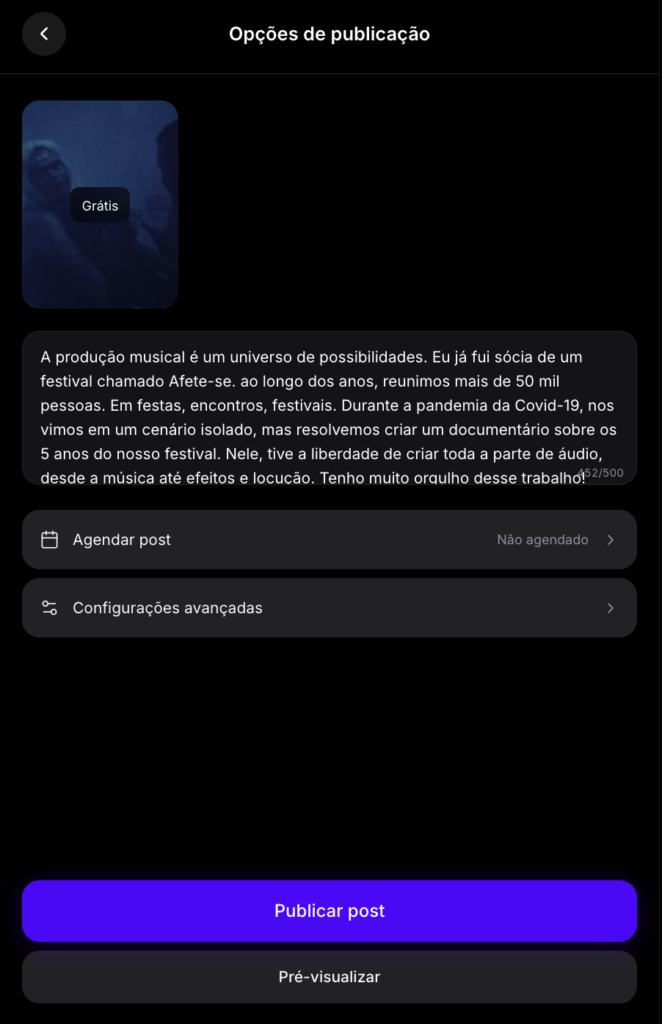
Before your content goes live, check how it will look.
Review the media, reread your caption and make sure you’ve selected the right access option.
It’s a simple step that can save you from having to fix something later.
6. Publish now or schedule for later
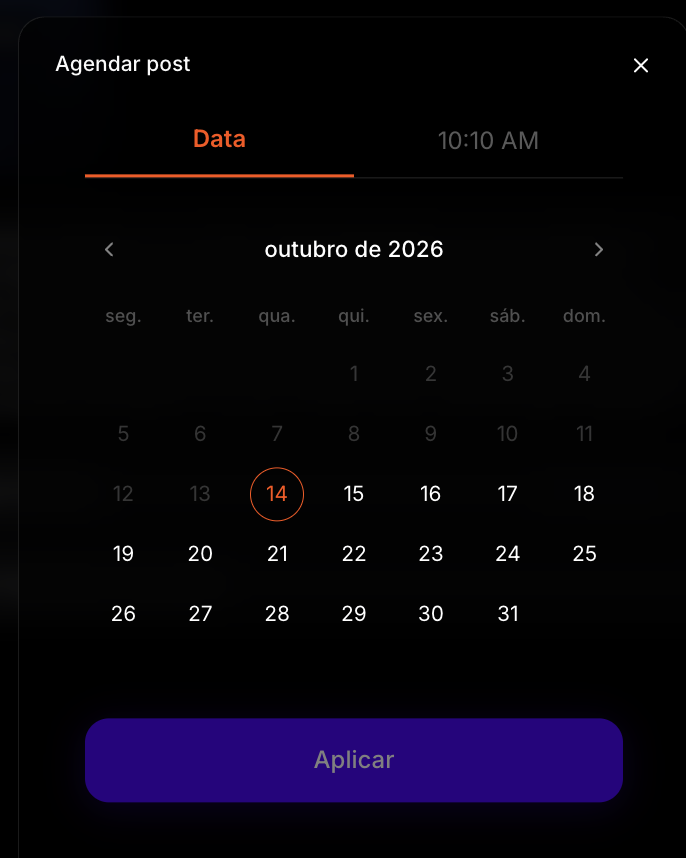
Everything ready? Once you’ve reviewed your Flamus post, you can publish it right away or choose a future date.
Scheduling is useful if you prefer to create several pieces of content at once and organize your routine in advance.
Flamus also keeps unpublished content in its own area, with drafts separate from the calendar of upcoming posts.
A few extra controls
You can also turn off comments on a post.
And soon, you’ll be able to pin a post to your profile, create challenges that unlock content when your community reaches a goal and publish posts that disappear after 24 hours.
Frequently asked questions about publishing on Flamus
Can I schedule a post on Flamus?
Yes. When it’s time to publish, you can post your content right away or choose a future date. Scheduled content is organized in the publishing calendar.
Who can see my post?
That depends on the access option you choose. Your post can be free and open to everyone, exclusive to subscribers or available through pay-per-view.
Can I publish from my phone?
For now, publishing is done through a web browser on your computer. Flamus doesn’t have an app yet. But there is a way to add a website to your phone’s home screen. See how here.
What’s the difference between Post and Spark?
Post supports photos and videos and appears on the Creator’s profile and in the community feed. Spark is for vertical videos watched in sequence.
Ready to publish
Now that you know how to publish on Flamus, why not create your first post?
If you have any questions along the way, contact the Flamus Community Management team.